How to Connect Kimi to LinkedIn: K3, Swarm and Outreach (2026)
Kimi K3 cannot reach LinkedIn on its own. Here is how to connect Kimi to LinkedIn through MCP, which Kimi surface to pick, and how to turn Swarm research into outreach.
By The LinkupAPI Team · Reviewed by Eliott · Updated
Kimi K3 can hold a million tokens of context, run 300 sub-agents at once, and hand you a finished research report. Ask it to send one LinkedIn connection request, and nothing happens.
That gap is the subject of this guide. Moonshot shipped K3 in July 2026 across a desktop app, a terminal agent, and an API. None of them talk to LinkedIn on their own. Here is how to connect Kimi to LinkedIn through MCP, which Kimi surface to pick, and how to stop a very proactive model from improvising with your account.
Key Takeaways
- Kimi has no native LinkedIn channel. Kimi Work and Kimi Code add one through an MCP plugin.
- Setup is one API key, one MCP registration, and one test search. About ten minutes.
- Use K3 Swarm for research at scale and a single agent for the LinkedIn actions.
- Constrain K3 in AGENTS.md and put an approval step in front of every send.
What Does Connecting Kimi to LinkedIn Mean?
Connecting Kimi to LinkedIn means giving the Kimi agent an MCP server with LinkedIn capabilities, so it can search profiles, send connection requests, reply to messages, and find a work email through your own authenticated session. The agent decides who to contact and what to say. The server carries out the action.
MCP is the open standard that lets an agent pick up outside tools. Anthropic created it, and Moonshot adopted it across the Kimi line. Kimi Work calls these connections plugins. No glue code. No workflow tool in the middle.
What This Setup Is Not
This is an agent connection, not a browser trick. Three nearby tools get confused with it.
- Not browser automation. Kimi WebBridge can drive a local browser, and Moonshot's demo shows it pulling LinkedIn research into a CSV. Phantombuster and Dripify do the same with recorded clicks. The MCP route gives Kimi the action itself, not a replay of a human on a page.
- Not a workflow builder. Make, n8n, and Zapier chain triggers between apps. Here the agent decides who, what, and when.
- Not a CRM. Kimi does not store your pipeline. It works from your ICP and hands results back to HubSpot or a sheet.
Why Can't Kimi Reach LinkedIn on Its Own?
Kimi cannot reach LinkedIn by itself because LinkedIn offers no open path for outreach actions, and Kimi's only native route is a browser. A browser works for reading a page. It breaks the moment an agent has to log in, paginate, and press send at scale.
The evidence is all over r/openclaw. One user runs OpenClaw with Kimi 2.6 as the model to work LinkedIn listings. It refreshes the page, applies a filter, then stalls. Another rig dies on a rate limit, because a single LinkedIn page burns nearly 20,000 tokens through a browser relay.
The browser is the wrong door, not the model. The fix is the same one that works for connecting OpenClaw to LinkedIn: structured actions instead of a screen to click on.
Which Kimi Should You Connect: Kimi Work, Kimi Code, or the API?
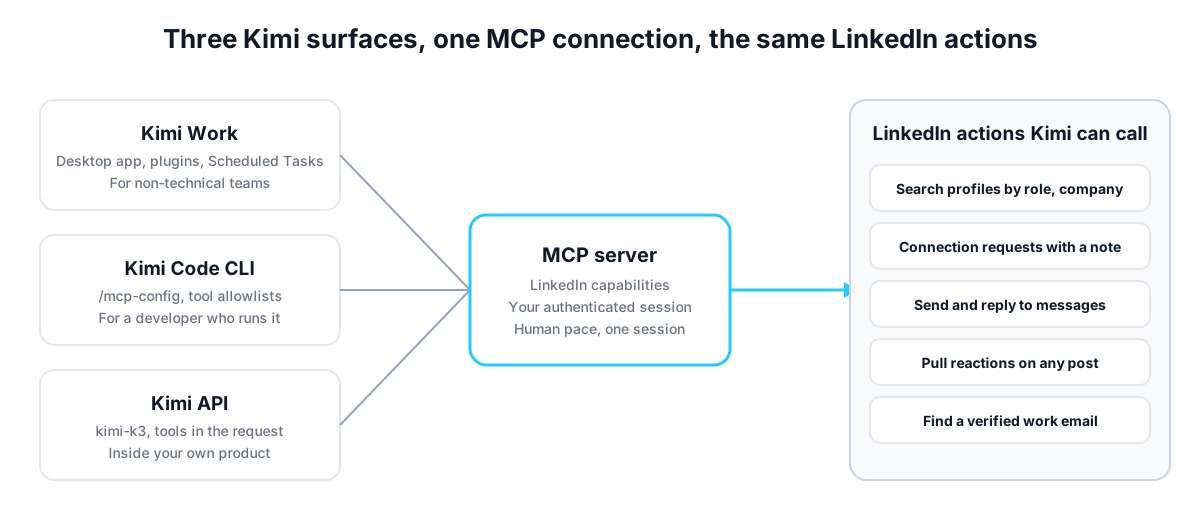
Pick Kimi Work if nobody on the team writes code, Kimi Code if a developer runs it, and the Kimi API if LinkedIn outreach has to live inside your own product. All three speak MCP. They differ in who operates them and how the routine gets scheduled.
- Kimi Work is the desktop app. Plugins install from the Customize menu, and Scheduled Tasks run a routine on a cadence without a terminal. K3 is included on the Moderato plan and above.
- Kimi Code CLI registers a server with the /mcp-config command and lets you allowlist tools per agent.
- The Kimi API takes tool definitions in the request. The model is kimi-k3, priced at $3 per million input tokens, $0.30 on a cache hit, and $15 per million output tokens.
The trade-off: Kimi Work is fastest to start and hardest to constrain. Kimi Code takes twenty more minutes and gives you an allowlist and a system prompt you control.
How Do You Set Up the Connection?
You connect Kimi to LinkedIn in four steps: get an API key, register the MCP server in Kimi Work or Kimi Code, run one test search, then turn the working prompt into a scheduled task. Most of the ten minutes goes to signing in to LinkedIn once.
- Get your API key at linkupapi.com. The MCP server LinkupAPI runs gives Kimi profile search, connection requests, messaging, post reactions, and email lookup. It works with any MCP-compatible agent, Claude and Cursor included.
- Register it. In Kimi Work, add the plugin and paste the key. In Kimi Code CLI, run /mcp-config, choose HTTP, and add the key as a header.
- Send a test prompt: "Find 10 heads of talent at Series B fintech companies in London who posted in the last 30 days. Show me the list. Do not contact anyone yet."
- Once the list looks right, save the prompt as a Scheduled Task in Kimi Work, or a cron entry around Kimi Code, with the send step gated behind your approval.
The pattern is identical to connecting Claude to LinkedIn. Only the registration menu changes.
How Does K3 Swarm Turn Research Into Outreach?
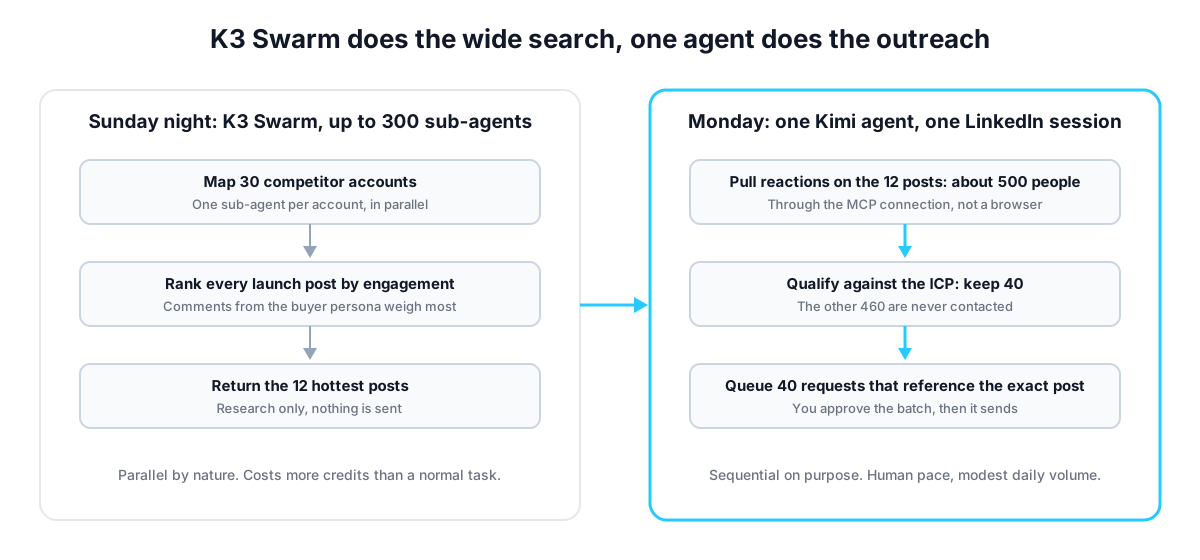
K3 Swarm handles the wide part of the funnel and a single agent handles the narrow part. Swarm spins up to 300 sub-agents to map a market in one pass. One Kimi agent then reads that map, pulls the people who engaged, and contacts a short list through the LinkedIn connection.
Here is what that looks like for a two-rep team at a Series A dev-tools startup. Swarm maps 30 competitor accounts on Sunday night and flags the 12 launch posts with the most comments from engineering managers. On Monday the single agent pulls the reactions on those posts, roughly 500 people. It qualifies them against the ICP and keeps 40. Those 40 get a connection request that references the exact post they reacted to. The other 460 never hear from it.
The mechanism matters more than the numbers. Someone who commented on a rival's launch last week is warmer than any cold list, and the note lands while they still remember the post.
One caution. Swarm should never hold the send button. LinkedIn tolerates one session at a human pace, not 300.
Run this against your own competitors this week. Get your API key at linkupapi.com and hand your next Swarm run to an agent that can act on it.
What Does a Scheduled LinkedIn Routine Look Like in Kimi Work?
A scheduled routine in Kimi Work is one saved prompt that fires on a cadence, searches for new prospects, queues a small batch of requests, and moves quiet threads to email. You review the batch, not the individual clicks.
Before: a founder at a 12-person fintech infrastructure startup in New York spends Monday mornings in Sales Navigator, copying names into a sheet and writing 25 notes by hand. After: a Scheduled Task fires at 8:10am, finds 25 VP Sales at Series A fintechs in New York who changed roles in the last 90 days, drafts each note around the role change, and waits for a yes.
Day five is where the second channel earns its keep. Anyone who has not accepted gets a work email lookup through the same server, and a short follow-up by email instead of a second LinkedIn nudge. Same sequence, two channels, no extra tool.
The approval step is not optional, and practitioners say so themselves. One agent builder on Reddit put it this way after reading LinkedIn's terms: "I don't want the AI clicking Connect. I want it to tell me who, what, and when, then I do the final click." Kimi Work supports that stance. Let it prepare the batch and ask before it sends.
Get your API key at linkupapi.com, connect the plugin, and schedule your first Monday run.
The Mistake Most Teams Make With Kimi K3
The mistake most teams make is treating K3 like a cautious assistant. It is not. Moonshot's own release notes warn that the model can make unexpected decisions on the user's behalf when a task is ambiguous, and they recommend explicit constraints in the system prompt or AGENTS.md. On LinkedIn, an unexpected decision is a message you did not approve.
Practitioners see the same trait. One r/AI_Agents benchmark ran K3 through 12 multi-app agent tasks over MCP. It tied the most expensive model on the board for about a sixth of the cost per task, failed every cross-app reconciliation task, and the author's advice was to assume it comes back confident and slightly wrong. When we tested K3 on a first outreach batch, the list was sharp, plus two prospects it added on its own initiative.
Three guardrails cover most of it:
- Write the rules in AGENTS.md: daily volume, who is off limits, and never contact anyone twice.
- In Kimi Code, allowlist only the LinkedIn tools the routine needs. Search on every run. Send only inside the scheduled batch.
- Gate the send. Queue drafts, ask for approval, then release. A written rule gets skipped eventually. A hard step in the sequence does not.
This fits teams that already run Kimi for research or code and want outbound on the same subscription. It is the wrong choice for someone who sends ten careful InMails a week. A browser extension is honestly simpler for that. And no, it does not need an engineer. It needs one API key, one plugin, and a system prompt you have read twice.
Frequently Asked Questions About Connecting Kimi to LinkedIn
Can Kimi connect to LinkedIn on its own?
No. Kimi Work, Kimi Code, and the Kimi API ship without a LinkedIn channel. The only native route is browser automation, which suits reading a page but fails at outreach. The working method is an MCP plugin that exposes LinkedIn actions through your authenticated session, registered once in Kimi Work or Kimi Code.
Kimi Work, Kimi Code, or the Kimi API: which one for LinkedIn outreach?
Kimi Work for non-technical teams, because plugins and Scheduled Tasks need no terminal. Kimi Code for a developer who wants a tool allowlist and a custom system prompt. The API when outreach has to live inside a product you ship. All three connect to the same MCP server.
Does Agent Swarm work for LinkedIn outreach?
Swarm works for the research half, not the sending half. Up to 300 sub-agents can map competitors, posts, and engagement in one pass. LinkedIn actions should run through one agent at a normal session pace. Swarm also costs far more credits than a standard task, so save it for the wide search.
How do I stop Kimi K3 from over-improvising with my LinkedIn account?
Follow Moonshot's own guidance and constrain the model in AGENTS.md or the system prompt: daily limits, excluded companies, no repeat contacts. In Kimi Code, allowlist only the tools each routine needs. Then gate every send behind an approval step, so an unexpected decision becomes a draft you reject, not a message you sent.
Will Kimi get my LinkedIn account restricted?
Not when actions go through your authenticated session at a human pace. Restrictions hit browser rigs, especially ones on a VPS, because the traffic carries a datacenter fingerprint and moves like a script. Keep daily volume modest, skip the 200 requests on day one, and the account stays in good standing.
Kimi already does the expensive thinking cheaply. Giving it LinkedIn is the small piece that turns research into replies. Get your API key at linkupapi.com, connect the plugin, and let your next Swarm run end in a conversation instead of a spreadsheet.
